Create a 4All Account and Verify Your Email
Create an individual account, complete email verification, and reach onboarding safely.
Written By 4ALL.LIVE
Last updated 4 months ago
Create an individual account, complete email verification, and reach onboarding safely.
Best for: New users and invited collaborators.
Before you start
No paid plan is required to create an account; organization and feature access depends on invitations, roles, and entitlements.
- Use an individual work email you can access now.
- Have the correct official 4All sign-up URL.
- If invited, use the same email address that received the invitation.
Steps
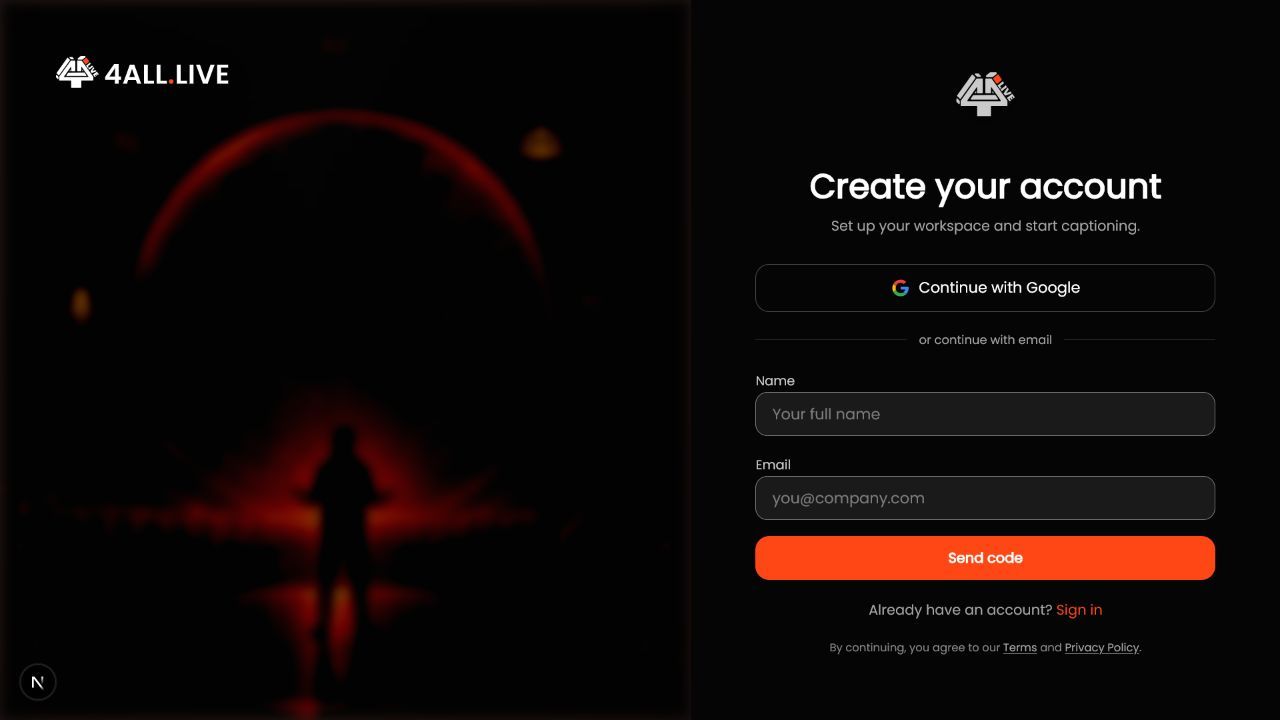
- Open Sign Up. Open the official sign-up page and select the normal account-creation flow.
- Enter your identity. Provide your name and individual email; shared mailboxes weaken auditing and recovery.
- Choose a sign-in path. Continue with Google when permitted, or use email verification. A password can be added later.
- Request one verification code. Submit once, keep the page open, and wait for the current code.
- Verify the email. Enter the newest code before it expires; requesting a new code invalidates older ones.
- Complete onboarding. Confirm profile details, optionally add a passkey, then create or join the intended organization.
- Confirm access. Open Events and confirm the expected organization appears after any invitation is accepted.
What success looks like: The verified account reaches the dashboard and can create an organization or accept access granted to that exact email.
Check your setup
- The dashboard no longer redirects to Verify Email.
- Profile name and email are correct.
- Only intended organizations appear.
Troubleshooting
Code rejected
Use the newest code, remove accidental spaces, and request a new code once if expired.
Wrong email used
Sign out and use the account matching the invitation; never share another member’s login.
Verification loop
Close duplicate tabs, allow required cookies, reopen the official verification route, and request one fresh code.
Security and operational notes
- Never share verification codes.
- Confirm the 4All domain before entering identity information.
- Use a named account for each operator and administrator.
Related guides
- Sign In with an Email Code or Password
- Accept an Organization Invitation
- Manage Your Profile and Email
Was this helpful?
Still need help? Ask the team