Create an Event Step by Step
Create a production event with the correct workspace, team, identity, schedule, and initial access.
Written By 4ALL.LIVE
Last updated 4 months ago
Create a production event with the correct workspace, team, identity, schedule, and initial access.
Best for: Organization administrators, event producers, live operators, and authorized support staff.
Before you start
Event access and actions depend on organization role, team scope, plan entitlements, limits, and current event state.
- Use an individual verified account in the correct organization and team.
- Confirm the event owner, live operator, output owner, and incident authority.
- Review the current configuration before changing an existing or live event.
Steps
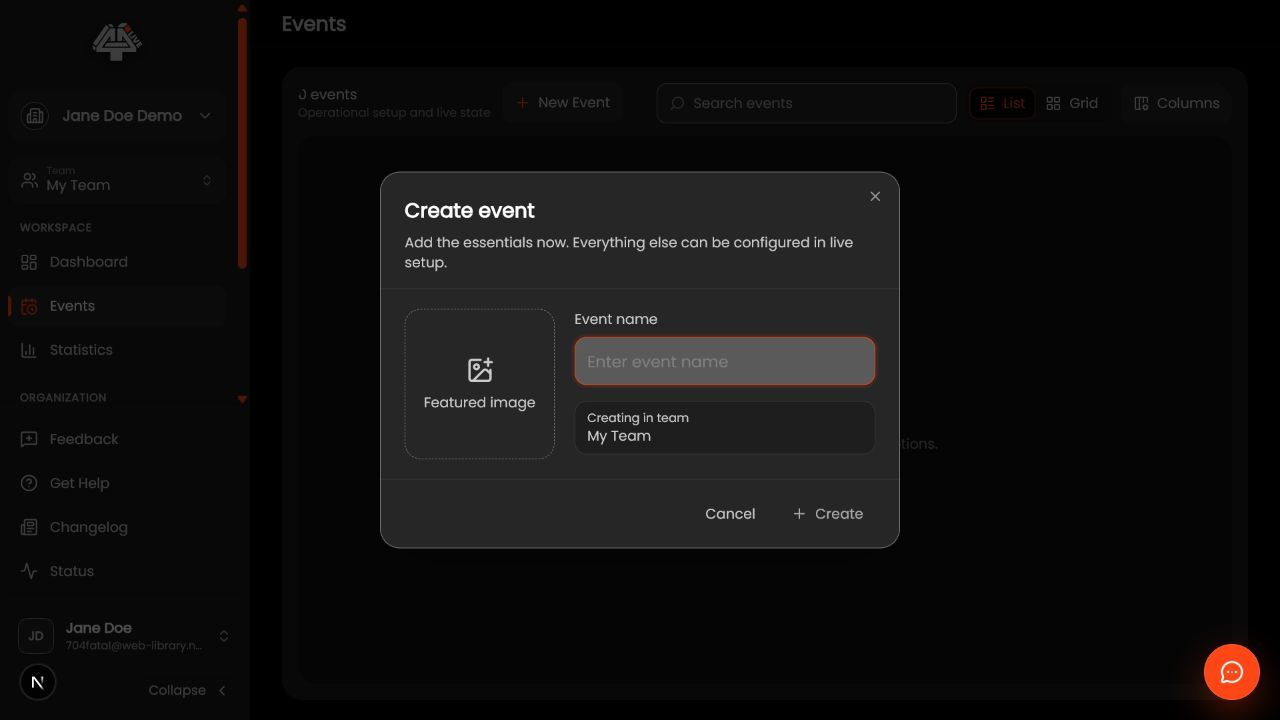
- Open Events. Select Events from the sidebar and confirm the organization/team switcher.
- Choose Create event. Start a new event and keep the dialog open until required fields are valid.
- Enter identity. Use a recognizable name, approved image, location or virtual context, concise description, and URL-safe slug.
- Set schedule. Enter start/end dates and time zone used by production; account for rehearsal and viewer communication.
- Assign the team. Choose the team that should own the event and verify expected producers are members.
- Set access and lobby defaults. Choose visibility, lobby, skip/auto-join behavior, and privacy link according to the audience plan.
- Create. Submit once and wait for the event page.
- Complete setup. Open Setup Wizard or Live Setup and configure audio, recognition, languages, displays, sharing, and preflight.
What success looks like: The event reaches the intended saved or live state, and every required operator can verify the result without receiving unnecessary access.
Check your setup
- The event appears under the intended organization/team.
- Name, slug, schedule, and lobby are correct in a signed-out view.
- Assigned operators can open it; unrelated members cannot.
Troubleshooting
Create blocked
Check required fields, slug availability, max-event entitlement, team permission, and subscription state.
Event appears in wrong team
Edit assignment before inviting operators or distributing links.
Duplicate created
Choose the authoritative event and delete the unused one only after confirming no links/configuration are needed.
Security and operational notes
- Do not use a live customer event as a test sandbox.
- Treat public slug and description as externally visible.
- Validate plan/event limits before promising deliverables.
Related guides
Was this helpful?
Still need help? Ask the team