Configure Public Program Display
Build the primary shared caption presentation for a venue, confidence monitor, webcast layer, or dedicated display.
Written By 4ALL.LIVE
Last updated 4 months ago
Build the primary shared caption presentation for a venue, confidence monitor, webcast layer, or dedicated display.
Best for: Event producers, display operators, accessibility leads, broadcast/AV engineers, web teams, and authorized remote operators.
Before you start
Availability depends on event access, plan entitlements, destination enablement, language configuration, and supported browser/display/network behavior.
- Use the correct event and final source/target language configuration.
- Know the physical or web destination, resolution, audience, privacy level, and monitoring owner.
- Test the final receiving screen, embed, graphics path, or operator device—not only the setup preview.
Configuration
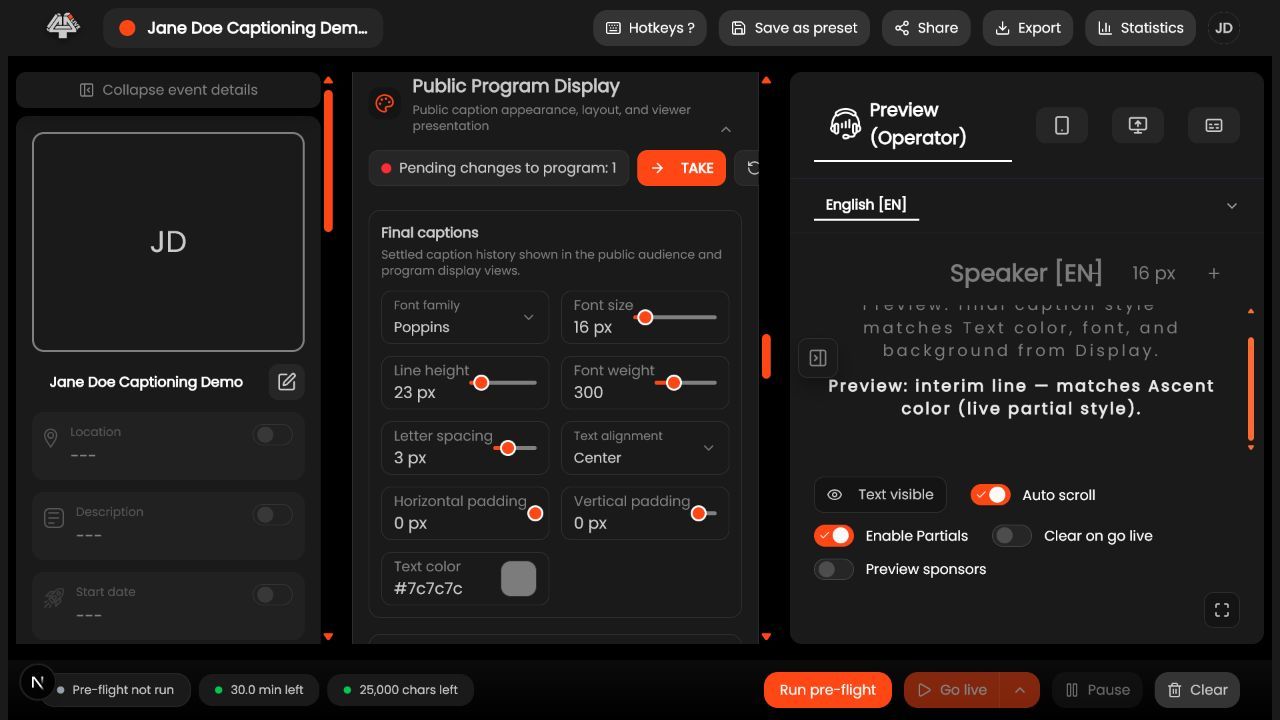
- Open Public Program Display. Confirm event and current language.
- Choose layout. Set line count, width, alignment, safe margins, and vertical position for the final aspect ratio.
- Set typography. Choose readable font, size, weight, line height, and dyslexia-friendly option where appropriate.
- Configure speaker treatment. Enable labels/pills only when routing or diarization is trustworthy.
- Configure behavior. Set partial/final display, rolling, clearing, animation, and TAKE/manual behavior.
- Configure background. Use solid, gradient, image, or fade with sufficient contrast.
- Open the real display. Use fullscreen/kiosk on the output machine.
- Test representative text. Long names, numbers, punctuation, two speakers, translations, fast speech, and empty/stop state.
What success looks like: The intended audience or operator receives the correct event, language, styling, and control level with a documented reconnect and fallback path.
Check your setup
- Captions remain readable from the worst viewing position and behave predictably at start, speaker change, TAKE, clear, and stop.
Troubleshooting
Text wraps unexpectedly
Reduce font/line count or increase safe width; test the final display scaling.
Speaker label wrong
Fix routing/diarization or use generic/no label.
Display stale
Check event live state, language, network/WebSocket, and browser sleep.
Security and operational notes
- Never display an authenticated setup page publicly.
- Accessibility and safe areas override decorative branding.
- Provide a backup output device.
Related guides
Was this helpful?
Still need help? Ask the team