Enable Spoken Captions and Choose a Voice
Configure an eligible TTS provider, model, voice, gender/speaker option, speed, and languages.
Written By 4ALL.LIVE
Last updated 3 months ago
Configure an eligible TTS provider, model, voice, gender/speaker option, speed, and languages.
Best for: Multilingual producers, caption operators, accessibility leads, event administrators, and authorized language reviewers.
Before you start
Translation, target-language count, glossaries, and text-to-speech depend on event permissions, provider/model/language support, plan entitlements, usage allowances or wallet, and eligible BYOK configuration.
- Confirm source language and provider quality first.
- List approved target locales, terminology, voice requirements, and human review responsibilities.
- Test with representative content before distributing viewer links.
Step by step
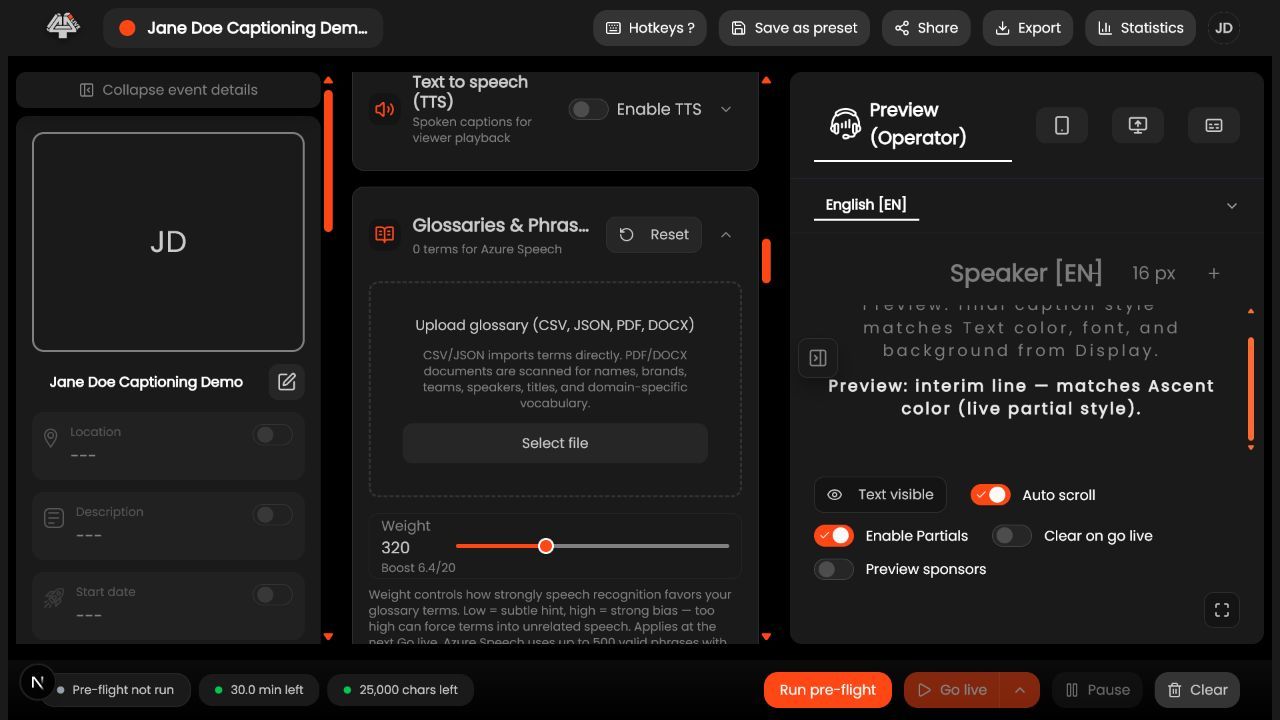
- Confirm audience need. Decide personal viewer playback versus another approved listening workflow.
- Check entitlement/usage. Verify TTS feature, provider funding/BYOK, wallet, and supported target languages.
- Choose provider/model. Azure voices are locale-bound; Google Chirp 3 named speakers can be cross-locale; Speechmatics availability depends on configuration.
- Choose voice. Select gender/voice/speaker supported for the language/model.
- Set speed. Keep intelligibility and lag within the audience need.
- Prevent feedback. Use headphones and keep TTS playback out of capture/mixer inputs.
- Test browser interaction. Autoplay often requires a viewer tap.
- Test long event behavior. Watch queue, interruption, language switch, network, and usage.
- Publish viewer instructions. Explain opt-in, volume, headphones, and stop controls.
What success looks like: The configured language service produces the intended accessible output with known quality, latency, usage, and recovery behavior.
Check your setup
- A viewer can deliberately start intelligible speech in the selected language/voice without feeding it back into recognition.
Troubleshooting
No voice for locale
Choose another supported provider/voice; Azure may fall back to a default when the language list is empty.
No playback
Require a user gesture, check media output/volume/Bluetooth, and provider state.
Speech lags
Reduce queue/speed mismatch or source/translation finalization delay.
Security and operational notes
- TTS is generated audio, not a human interpreter.
- Use headphones near microphones.
- Do not auto-play unexpectedly.
Need continuous LL-TTS instead?
This page covers conventional text-derived spoken captions. For continuous low-latency, direct audio-to-audio AI-generated spoken translation, use the LL-TTS eligibility, enablement, and preflight workflow.
Related guides
Was this helpful?
Still need help? Ask the team