Grant Permission, Select, and Test an Audio Input
Connect the intended microphone, mixer, or capture input and prove that 4All receives clean signal.
Written By 4ALL.LIVE
Last updated 4 months ago
Connect the intended microphone, mixer, or capture input and prove that 4All receives clean signal.
Best for: Live producers, caption operators, audio engineers, broadcast engineers, and authorized event administrators.
Before you start
Audio, speech providers, multi-speaker features, and usage are governed by event permissions, plan entitlements, provider support, credentials or wallet, and browser/device compatibility.
- Use the production event and supported browser/device.
- Know the source language, speaker plan, latency target, output requirements, and fallback.
- Test with representative voices, noise, pace, and the actual signal chain.
Step by step
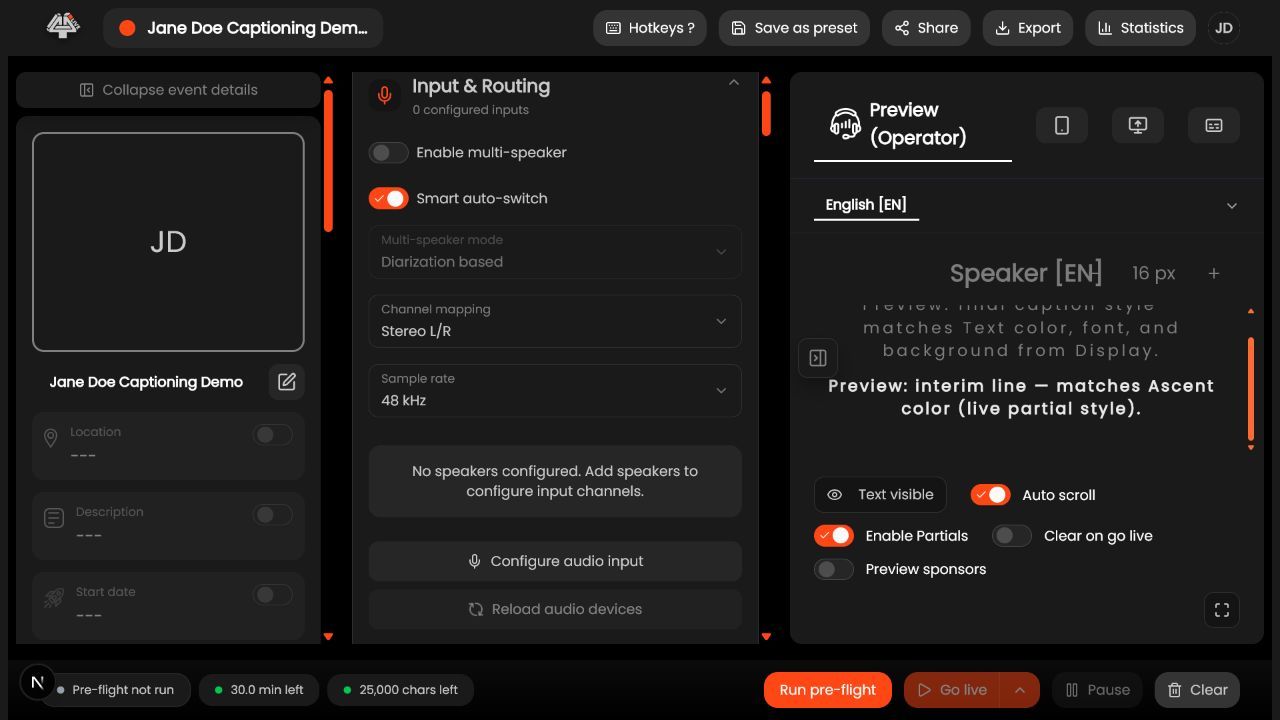
- Connect hardware first. Power interfaces, verify clock/sample format, and connect cables before opening Live Setup.
- Grant browser and OS access. Allow microphone access only for the official 4All origin and confirm operating-system privacy policy.
- Open Input & Routing. Refresh the device list when hardware changed.
- Select the exact device. Use the hardware name rather than Default when deterministic routing is required.
- Speak or play test audio. Watch the correct meter and listen through an approved monitor path.
- Set conservative gain. Target healthy speech without clipping; fix source gain before software compensation.
- Run preflight. Confirm permission, presence, and level.
- Record the selection. Document device, interface channel, cable/source, and backup.
What success looks like: The configured audio and recognition path produces stable, attributable captions within the approved latency/quality target and has a tested recovery path.
Check your setup
- The intended device is selected, meters track only that source, speech is intelligible, and preflight passes.
Troubleshooting
Permission denied
Enable the site in browser settings and the browser in OS privacy controls, then reload once.
Device absent
Reconnect/power hardware, install approved driver, close/reopen the browser, and refresh devices.
Wrong meter moves
Trace mixer/interface channel and remove ambiguous Default routing.
Security and operational notes
- Use headphones to prevent feedback.
- Do not expose sensitive room audio before the event’s recording/privacy policy allows it.
- Changing devices live can interrupt captions.
Related guides
Was this helpful?
Still need help? Ask the team